# Accessing Azure Analysis Services Models using .NET Core
> Querying an Azure Analysis Services model from .NET Core using ADOMD.NET with a service principal and token-based authentication via ADAL.NET.
Published: 2018-11-12
Tags: .net-core, adal.net, adomd.net, analysis-services, azure
Canonical: https://sanjaybhagia.com/blog/accessing-azure-analysis-services-models-using-net-core/
***Update (2020-07-25):*** Microsoft recently [announced](https://azure.microsoft.com/en-us/updates/net-core-support-for-azure-analysis-services-client-libraries-is-in-preview/) the .NET Core support for Azure Analysis Services client libraries in preview ([AMO](https://www.nuget.org/packages/Microsoft.AnalysisServices.NetCore.retail.amd64) and [ADOMD.NET](https://www.nuget.org/packages/Microsoft.AnalysisServices.AdomdClient.NetCore.retail.amd64)). You can use these packages instead of the Unofficial packages which I have based this blogpost on. These packages are still in preview though, so you can't (or shoudn't) use these in your production environment. I have added another console application project in my project which you can checkout [here](https://github.com/sanjaybhagia/azure-analysis-services-netcore-sample/tree/master/ConsoleApp/ConsoleAppOfficialLibs). I just updated the reference to the nuget packge in [.csproj](https://github.com/sanjaybhagia/azure-analysis-services-netcore-sample/blob/dd1a8f059551e78a7ad4da28b5a6a333dfa47938/ConsoleApp/ConsoleAppOfficialLibs/ConsoleAppOfficialLibs.csproj#L10) file, nothing else. These libraries should work similar to the full .NET framework ones.
---
Azure Analysis Services is a fully managed platform as a service (PaaS) that provides enterprise-grade data models in the cloud. Use advanced mashup and modeling features to combine data from multiple data sources, define metrics, and secure your data in a single, trusted tabular semantic data model. The data model provides an easier and faster way for users to browse massive amounts of data for ad-hoc data analysis.
Programming against Analysis services is nothing new and we have been doing it for a long time with the full .NET framework, the most common approach is using ADOMD.Net. In this blog post, I will go through the process of getting the same task done with .NET Core. For this sample, I'm using .NET Core 2.1.
The important thing to note here is that there is no official nuget package from Microsoft for ADOMD.NET yet, but I found an unofficial package here (Unofficial.Microsoft.AnalysisServices.AdomdClientNetCore) and it seems to work for my quick test (you have to make a call if you want to use it in production or not). I couldn't find any official word on this anywhere I looked for. Besides this nuget package for .net core rest of the stuff should work same in full framework (with official nuget for ADOMD.NET)
I have divided this into several steps so that it is easy to follow. So let's get started!
Step 1: Create Azure Analysis Service resource
The very first thing we need is the Analysis Server and model in Azure. Follow this quick starter to create the server.
Next is to create a model which we will use to query. You can create a model with sample data (adventure works) right from within your Analysis Server.
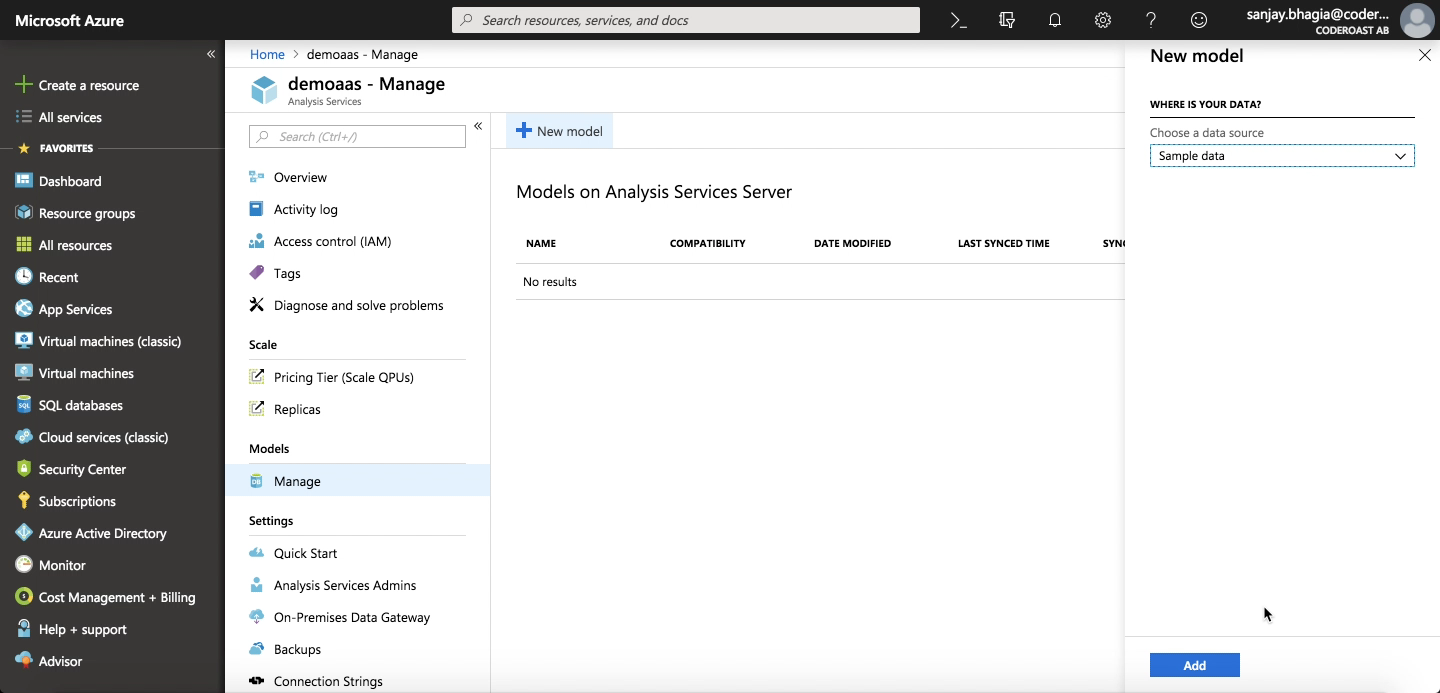
Click 'Manage' in the blade and click 'New Model'. Select 'Sample data' from the drop down and press 'Add'. It should add the model for you.
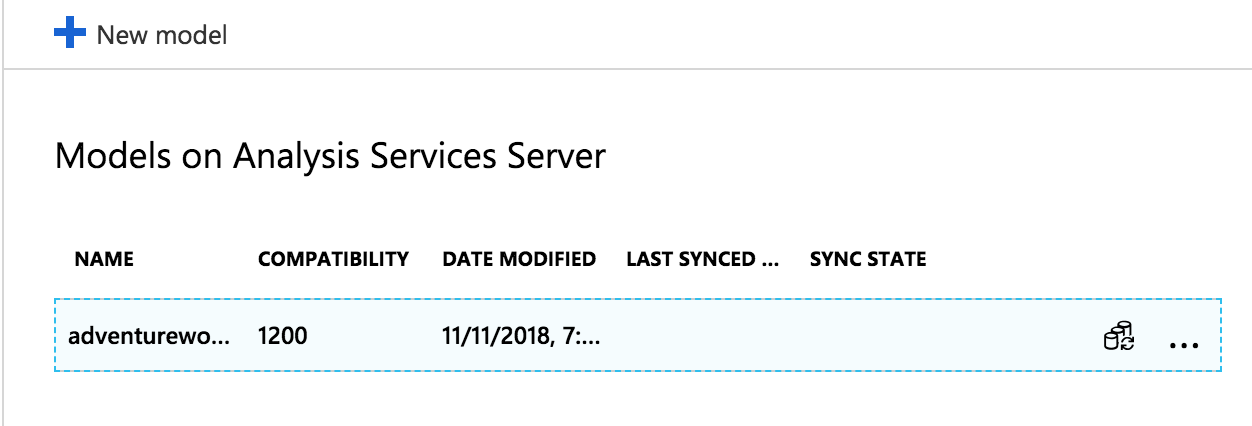
Create a model Analysis ServicesModel successfully created
Step 2: Create App Service Principal
There are many ways to access analysis services. Simplest is using a connection string that has usrename and password. But this is not recommended approach and works only with full .Net framework but not .Net Core (I was pointed by bdebaere in his GitHub respo regarding this), so we want to authenticate with other OAuth flows. For this post, we will use token-based authentication. For this we will need an app principal (or Azure AD App)
Navigate to Azure Active Directory -> App Registrations and Click New application registration.
Register an app with the following settings:
Name: any name
Application type: Web app/API,
Sign-on URL: https://westeurope.asazure.windows.net (Not really important here, you can provide any valid url).
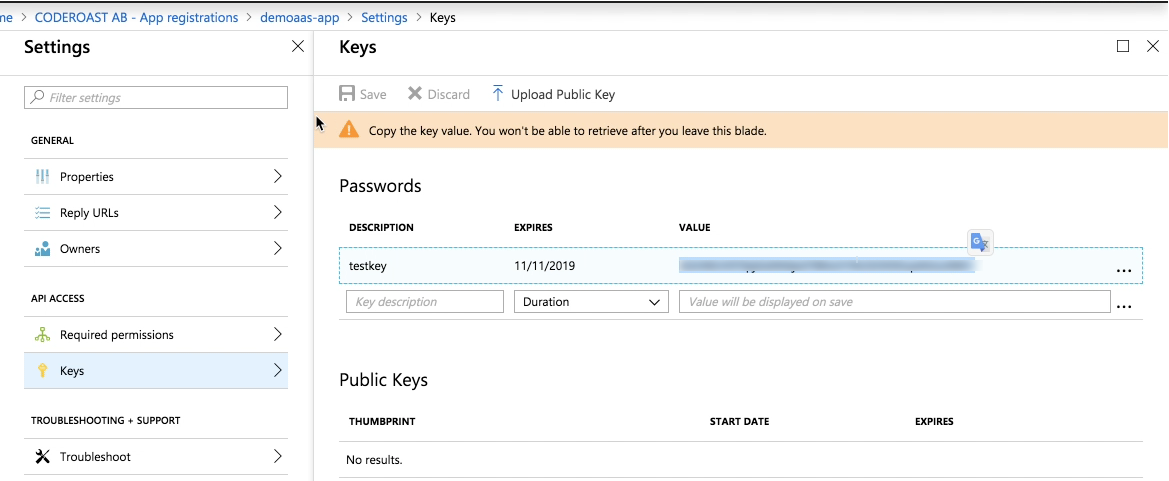
Once the app is created, navigate to 'Keys' and add a new key
provide the description and select duration and press Save button
after that you will be able to see the key it will appear only once so take note of this key and we will use this later on
Also take note of the Application Id from the main page of the application
Setting access key for Azure AD App
Step 3: Assign your user as Service Admin in order to connect from SSMS
Registering an app is not enough. We need to assign access to this app on Analysis Service Model (adventureworks model that we created in previous step). In order to give this access, we will need SQL Server Management Studio.
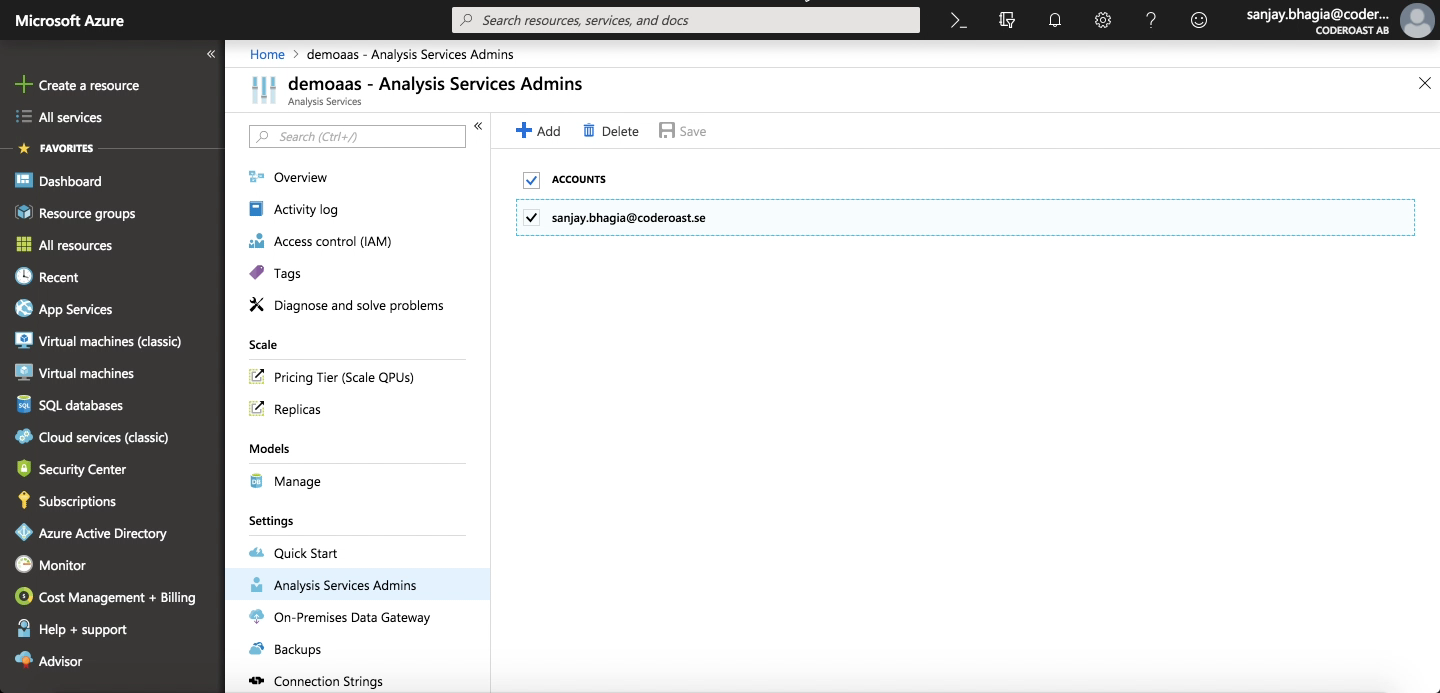
Before we could use that, we need a way to connect to this analysis services instance via SSMS. For this, we need to set up our account as Service Admin. Navigate to the Analysis Services resource that we created in the first step. Click 'Analysis Services Admin'. Normally your subscription account is set as the admin (this is what I will be using) but you are free to set up any account you wish appropriate.
Setting Sevice Admin for Analysis Service
Step 4: Grant permissions to app principal on the model
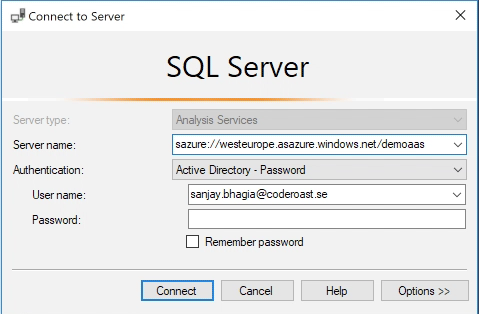
Connect to Analysis Service using SSMS 2017 with your account that you assigned as Service Admin in the previous step
You will need the Server name (from Step 1)
Select the database model and click on Roles or add a new Role
Choose any name
Select 'Read' database permission for the role
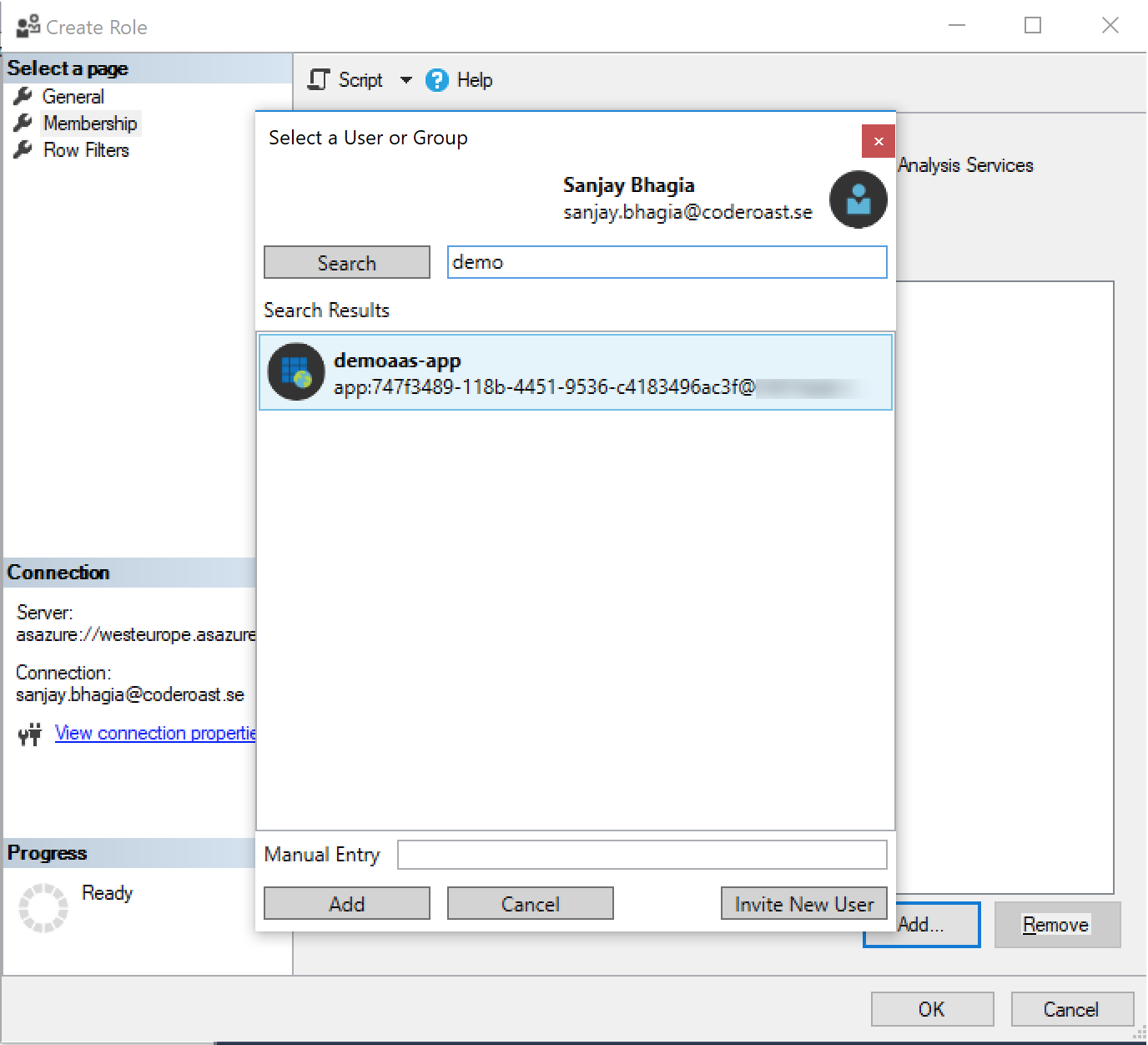
Add the Service principal to any role in below format (search for the app name)
Connect to Azure Analysis Server with Service Admin account Adding App principal as a member in newly defined role
This will add user with following convention: app:<appid>@<tenantid>
appid: is the application id for your app you created in the Step 2.
tenantid - is the id of your subscription (you can find this in Properties of your Azure Active Directory)
This didn't work for me when I tried to use Azure subscription with my personal account (hotmail) so I had to use my company account subscription to make this work.
Step 5: Write the code to access data
Now we are all set up write our code that reads from the Model. Please refer to the entire source code in my GitHub respository
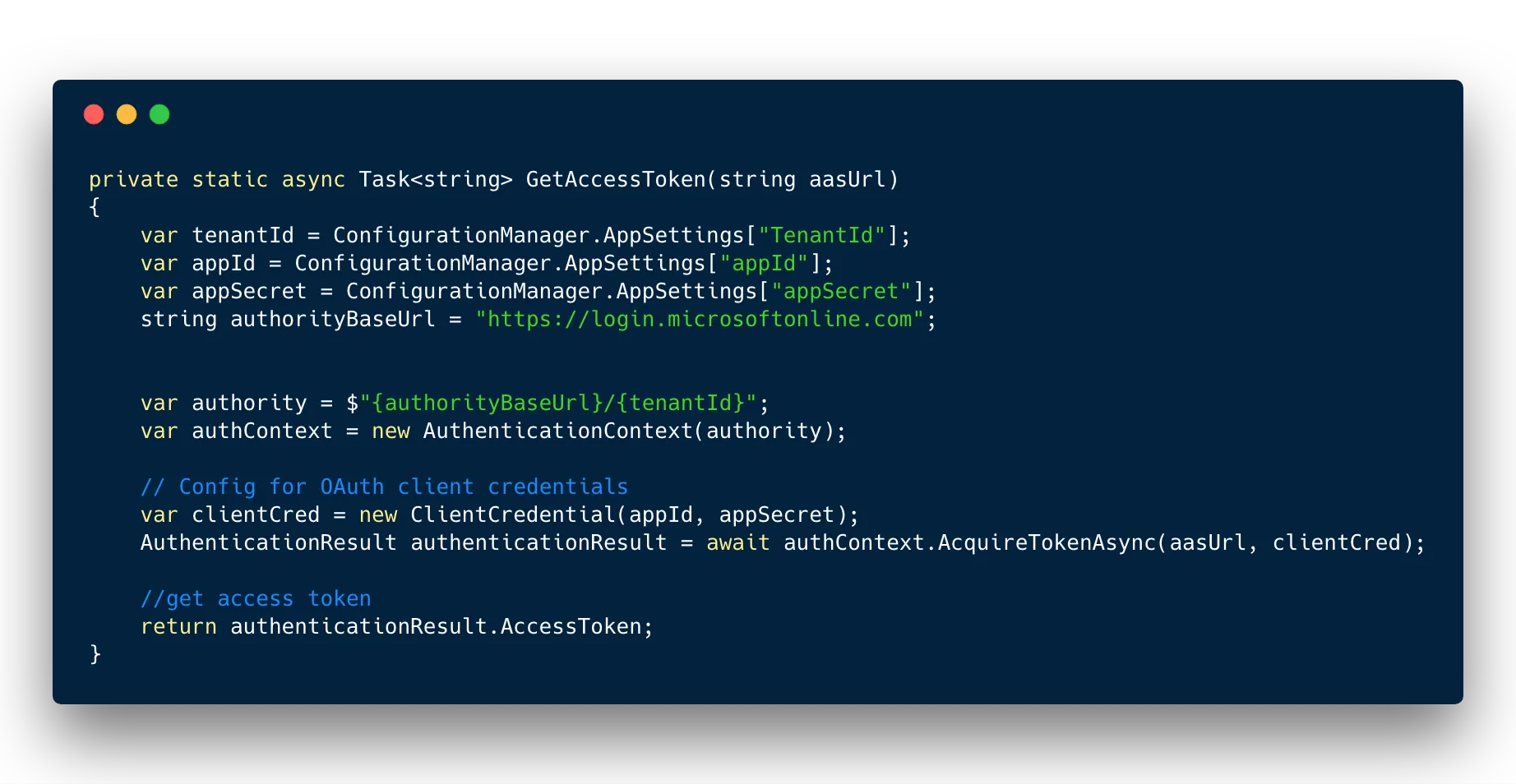
Important method here GetAccessToken. I'm using ADAL.Net (nuget: Microsoft.IdentityModel.Clients.ActiveDirectory) to grab the token for the service principal from Azure AD.
Method to acquire token from Azure AD to access analysis services
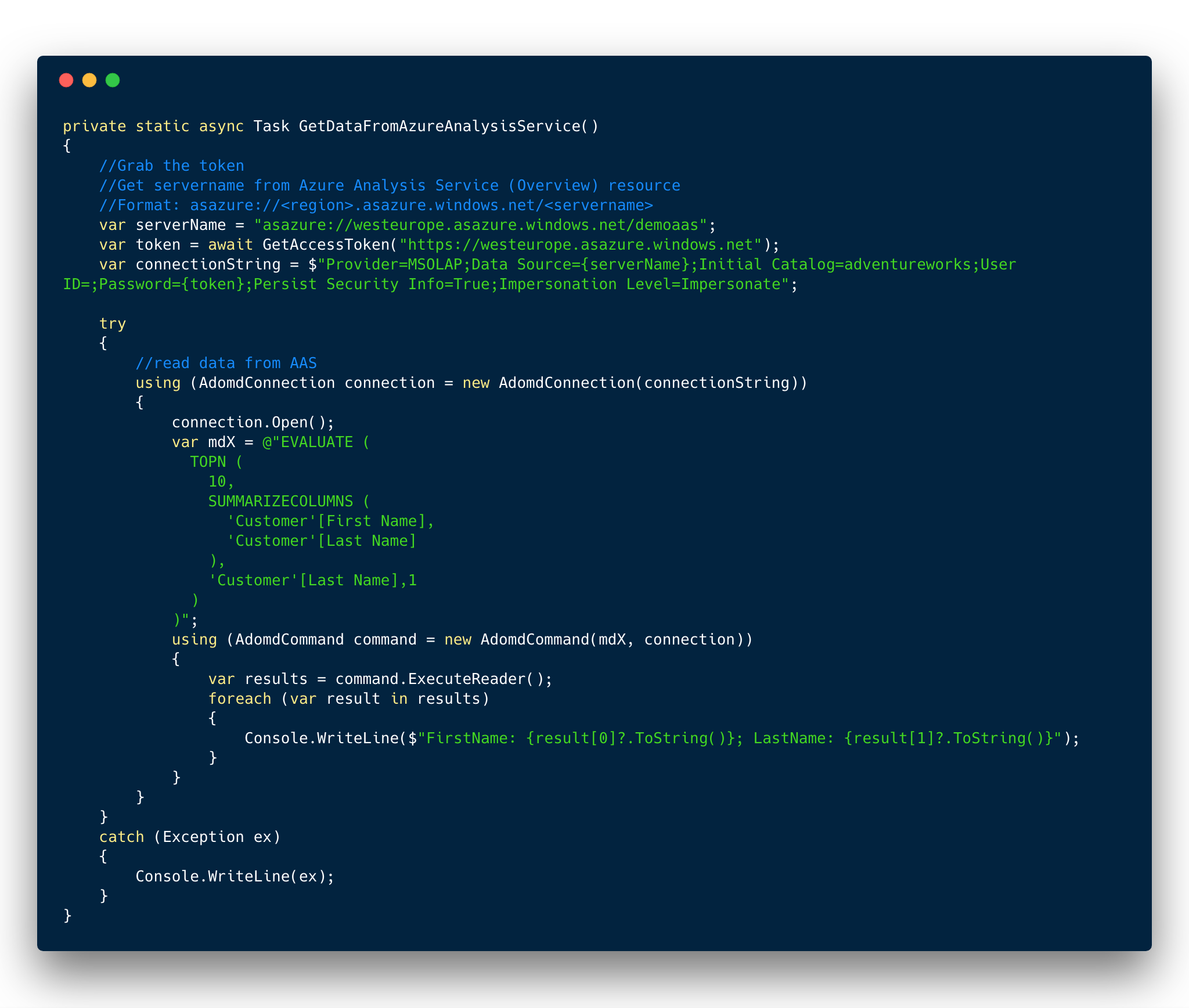
Once we have the token, we are good to access data from the model. Here I'm using the unofficial NuGet package for ADOMD.NET that I mentioned previously. The correct Connection String format is:
“Provider=MSOLAP;Data Source=<url of the Azure Analysis Server>;Initial Catalog=<modelname>;User ID=;Password=<access token here>;Persist Security Info=True;Impersonation Level=Impersonate“
User ID is left empty and Password is the access token which we get from Azure AD.
Method to read data from Analysis Services Model adventureworks
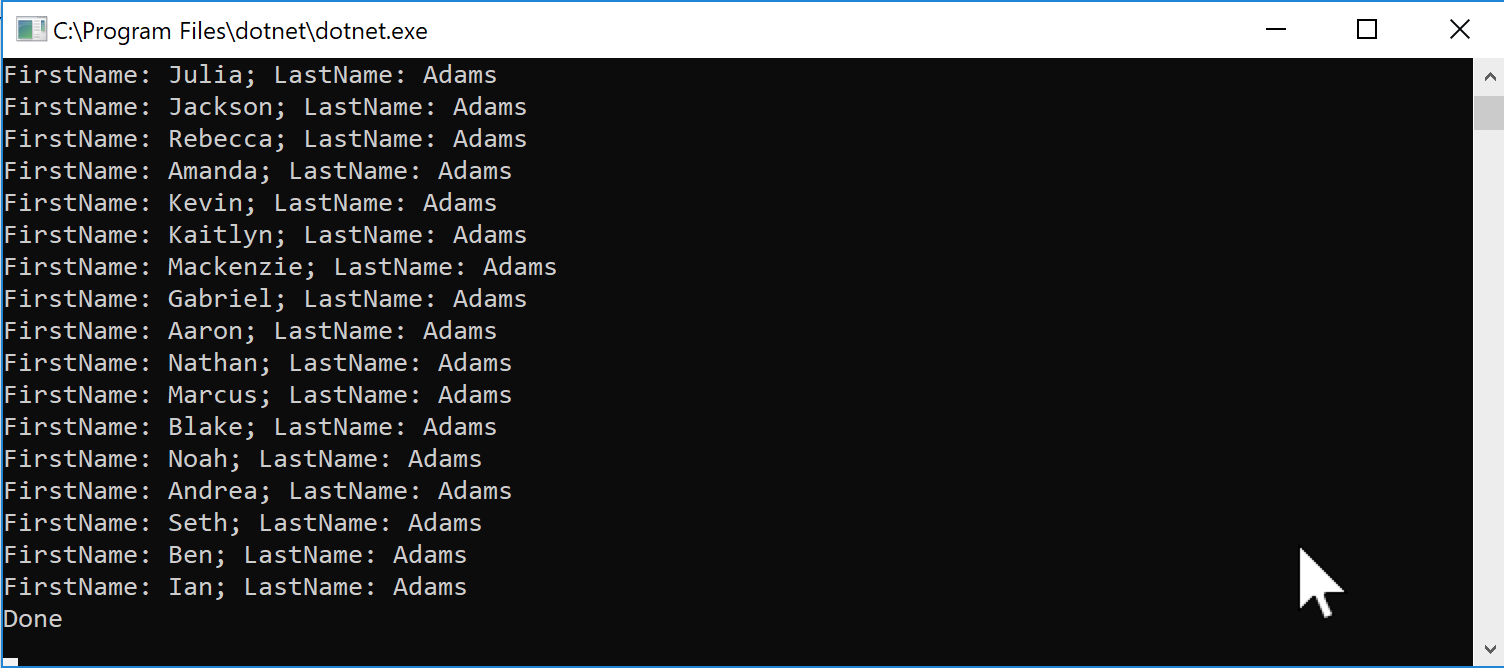
If you run this, you will see the output in the console
Final output of the program
Have you tried to work with Azure Analysis services in .NET Core? How was your experience? I would be very interested in listening to your experience and challenges.